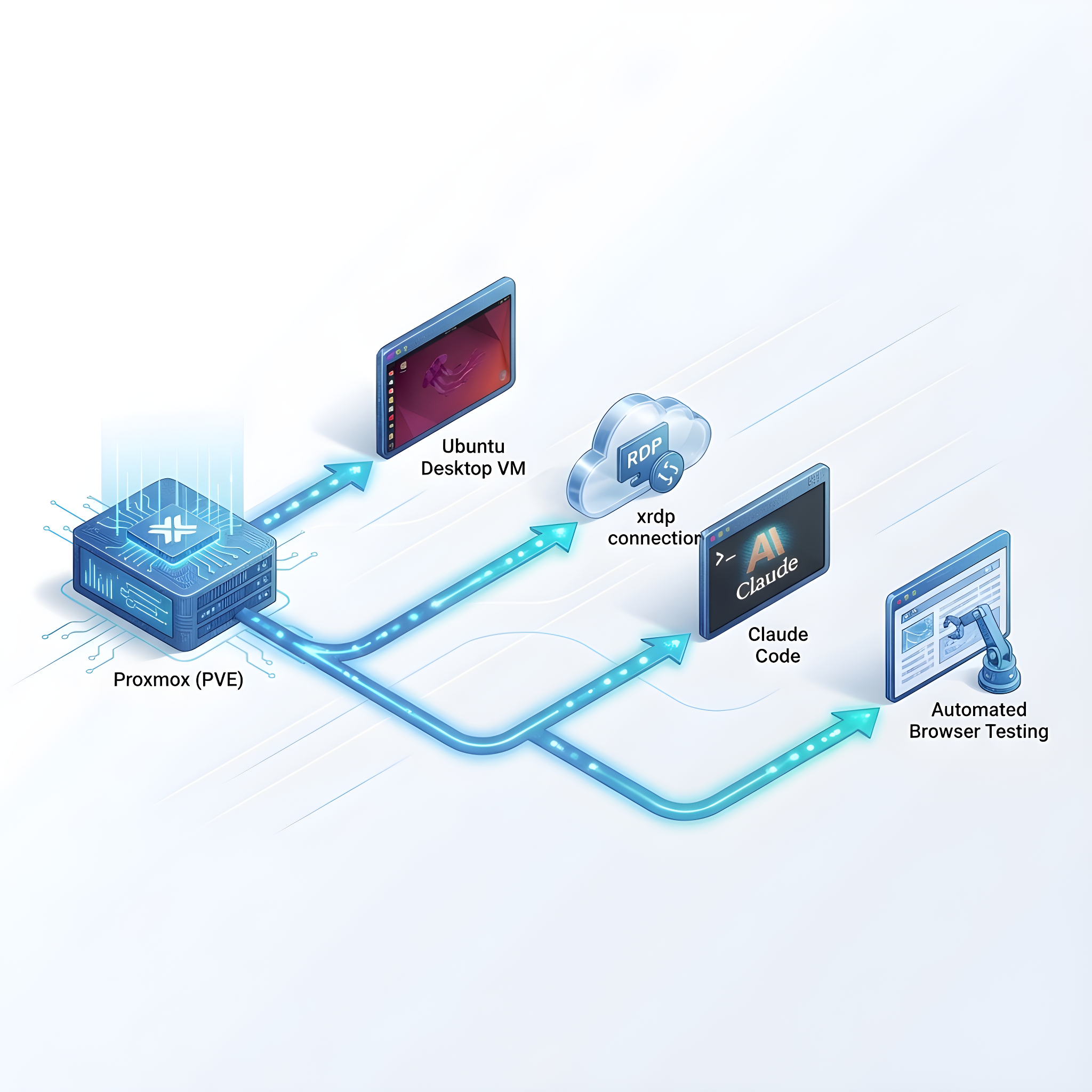
Recently, I verified an effective AI development method that doesn’t affect the existing workflow. Here’s a summary.
Why Choose VM + Claude Code
- Isolation: Avoid polluting the main system, can snapshot and rollback
- Reproducibility: Team members can quickly replicate the same environment
- Suitable for automated testing: Browser automation tools like Playwright require a desktop environment
- Safety: Not too worried about agent generating
rm -rf /commands. VM crashes don’t affect the virtualization platform; just recreate it.
Environment Setup
1. PVE Creates Ubuntu Desktop VM
- Download Ubuntu Desktop ISO, upload to PVE’s ISO storage
- Create VM:
- CPU: host type, 2-4 cores
- RAM: 4-8 GB
- Disk: VirtIO SCSI, 40GB+
- Network: VirtIO
- Mount ISO and start installation
- After installation, install qemu-guest-agent:
| |
2. Configure Xfce + xrdp Remote Desktop
Install xrdp and Xfce (lighter and more compatible than GNOME):
| |
During installation, when prompted to choose a display manager, select lightdm.
Solve Black Screen Issue
Edit xrdp startup script:
| |
Before the last two lines test -x and exec, add:
| |
Restart xrdp:
| |
Note: Don’t log in to the desktop locally before connecting, otherwise the same user will see a black screen.
Adjust Resolution/DPI
- Before Windows remote desktop connection, lower the resolution in “Display Options” (e.g., 1920×1080)
- Or in Xfce: Settings Manager → Appearance → Fonts → Increase DPI (e.g., 120)
Disable Crash Prompts
After switching desktops, there may be GNOME component crash prompts (doesn’t affect usage):
| |
3. Install Claude Code
| |
Run claude command for the first time and follow prompts to log in and authenticate.
Automated Testing Workflow: MCP Configuration
Playwright MCP
| MCP | Features |
|---|---|
@playwright/mcp (Microsoft official) | Lightweight, based on accessibility tree |
@executeautomation/playwright-mcp-server (community) | More complete features, supports screenshots, JS execution |
@agentdeskai/browser-tools-mcp | Console log monitoring, Lighthouse performance analysis |
Claude Code Configuration
Create .mcp.json in project root:
| |
Or add via CLI:
| |
OpenCode Configuration
If using OpenCode, the configuration format is different (opencode.json):
| |
Configuration Comparison:
| Configuration Item | Claude Code | OpenCode |
|---|---|---|
| Top-level key | mcpServers | mcp |
| type | Not needed | Required (local) |
| command | String | Array |
Usage Example
After configuration, you can drive tests with natural language:
| |
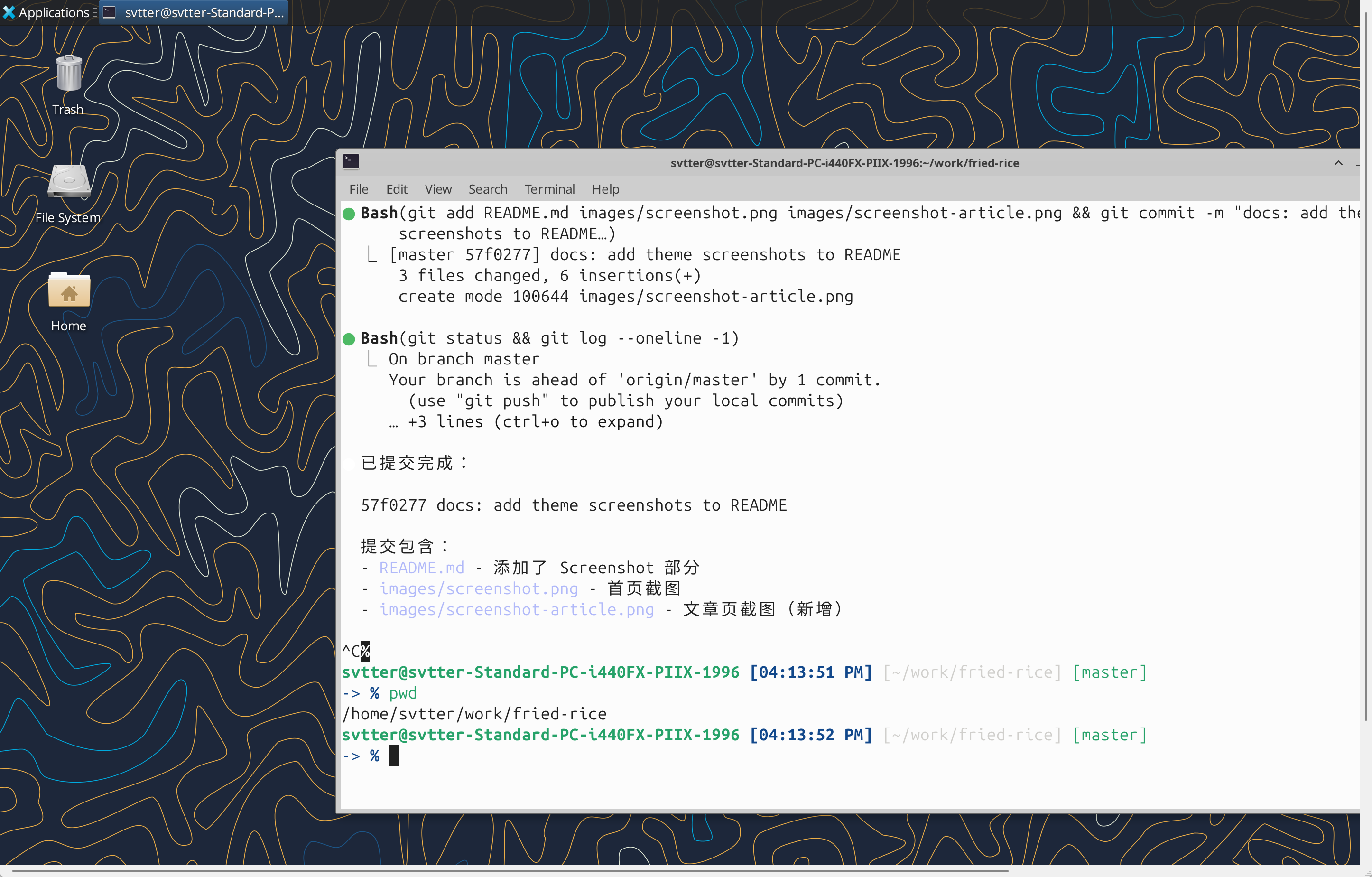
Results Display
Summary
The VM + Claude Code + Playwright MCP combination provides an isolated, reproducible automated development testing environment. The entire process:
- PVE creates Ubuntu Desktop VM
- Configure Xfce + xrdp remote access
- Install Claude Code / OpenCode
- Configure Playwright MCP
- Drive automated testing with natural language